Q: There are a thousand “AI tools for Product Managers” lists out there. How do I know which ones are actually worth using and which ones are just shiny-wrapped ChatGPT ideas?
Product managers don’t have an “AI tools” problem. They have a “too many tools, too little signal” problem.
Most AI tool roundups I’ve seen fail in the exact same way. They read like a ChatGPT output.
Everything is “great for brainstorming,” “great for productivity,” “great for teams.” Which is another way of saying the writer didn’t properly research the tool, didn’t try to do real PM work with it, and doesn’t want to admit that most tools are only great in one or a few narrow lanes.
Pick AI tools the same way you pick product bets: by the bottleneck they remove and the outcome they enable.
If a tool doesn’t slot into something you already do every week (discovery, alignment, execution, AI prototyping, measurement), it won’t create leverage. It will create tabs. And the tool graveyard is already full.
That’s why this guide is structured differently. It’s not “11 tools you should know.” It’s “the best tool or two for the actual goal you’re trying to achieve,” plus the prompts, workflows, and screenshot receipts to prove it.
I’ve tested every AI tool on this list, personally.
I wanted to see what they’re good for and what the product experience felt like. And for the more technical parts (AI agents, AI evals, tracing), we went deeper than a quick poke around the UI. We documented the labs so you can see exactly what we did.
In this article, Who these AI tools (and listicle) are for
This guide is for AI PMs (and product leadership) who want to:
reduce time spent on “blank page” work without lowering quality
run better discovery and synthesis loops with fewer hours of manual tagging
ship faster by tightening the handoff from spec → tickets → delivery
prototype convincingly enough to get buy-in before you burn weeks in engineering
build AI features responsibly (with evals, tracing, and regression checks)
In this article, I'm covering the most important takeaways. To download the full guide, follow this link:
Best AI Tools for PMs Guide
There are thousands of “AI Tools for Product Managers” out there, but these 11 ones are actually worth your time and credits. Learn their strengths, understand pricing, and try curated workflows to get the most out of them.
Download full guide
TL;DR AI Tool Picks
If you only read one section, read this one. Here’s what each tool is really for, in practice.
Best for AI thinking and drafting: OpenAI. The “unblock me now” layer that turns messy inputs into structured outputs (PRDs, tradeoffs, positioning, FAQs) and powers anything that needs an API model.
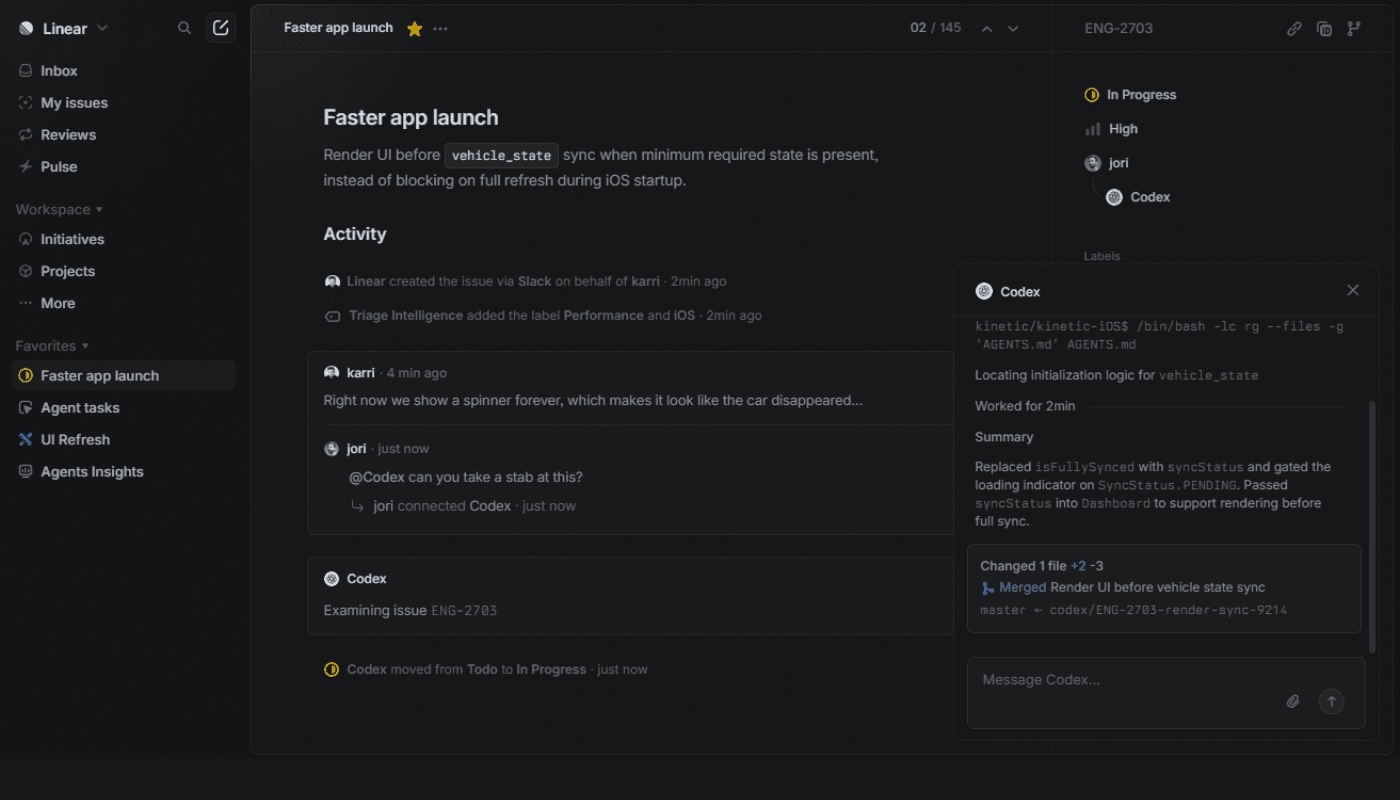
Best for execution and delivery: Linear. AI helps where work actually lives: drafting issues, summarizing threads, triage, and querying the backlog without clicking for 15 minutes.
Best for research and insight ops: Optimal Workshop. Structured research you can defend (card sorting, tree testing, first-click and prototype testing) with analysis that moves from data to decisions.
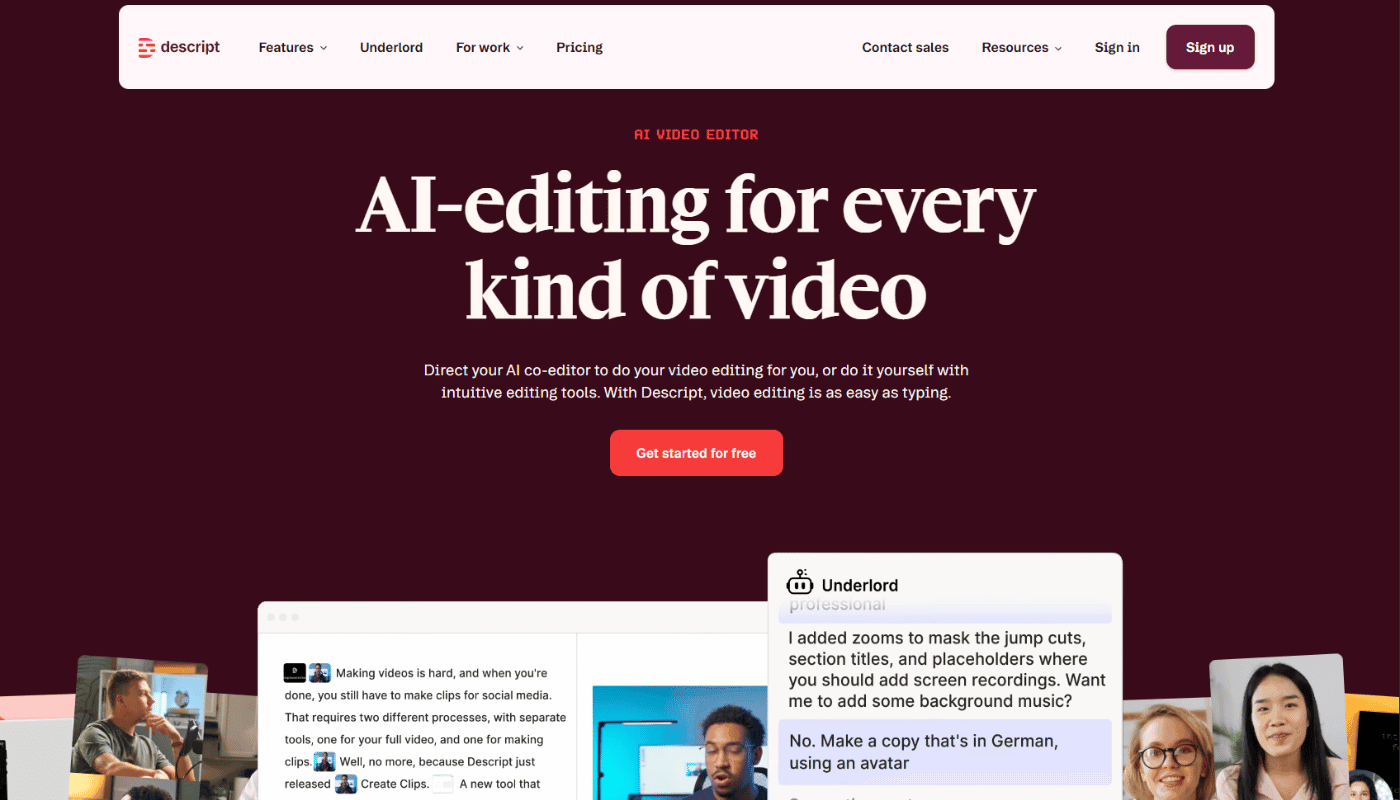
Best for turning calls into product artifacts: Descript. When your inputs are interviews, demos, and recordings and you need highlights, clips, and a clean insight memo fast.
Best for collaboration and alignment: Miro. A canvas for workshops and mapping, plus AI to synthesize and cluster themes into artifacts that survive the meeting.
Best for docs and in-product AI help: GitBook. Customer-facing and internal docs that can become an AI answering surface inside your product.
Best for stakeholder storytelling: Gamma. Polished decks and narrative docs you can share as a link, with strong export options when your org still lives in PPTX/PDF.
Best for rapid interactive prototyping with real flows: Lovable. A clickable app-like prototype with state and data, plus a path to production later via GitHub and backend integrations.
Best for fast “vibe coding” prototypes in the browser: Bolt.new. Generate a working demo from a prompt, iterate quickly, and publish/share without setting up local dev.
Best for prototyping changes on your real UI: Alloy. Capture a live product page and chat-edit the prototype so it looks like your design system without rebuilding in Figma first.
Best for agent workflow prototyping and shipping: LangFlow. Build agentic workflows and RAG visually, then ship the flow as an API, widget, or tool.
Comparison Table of AI Tools for Product Managers
Tool | Best for | Output quality | Integrations | Ease of use | Pricing snapshot |
OpenAI | Turning messy inputs into structured artifacts (PRDs, tradeoffs, FAQs), plus the model layer behind custom copilots | High (if inputs are good; still needs review) | Strong for “connect anything” via tools/function calling + hosted tool options depending on stack | Medium (simple in UI; real leverage needs process) | API usage is token-based; gpt-4o-mini rates are published on OpenAI pricing |
Linear | AI inside the tracker: drafting issues, summarizing threads, triage, backlog querying | High for execution artifacts (issues, summaries) | Native Slack + GitHub on Free; Zendesk + Intercom on Business; plus plan-gated AI ops features | High | Free: 2 teams, 250 issues. Basic: $10/user/mo (annual). Business: $16/user/mo (annual). |
Descript | Turning calls into decision-ready artifacts: transcript edits, highlight clips, shareable evidence | Medium–High (excellent for “evidence packaging”) | Zoom import, publish flows (YouTube), collaboration via share + notifications ecosystem | High | Seat-based plans (Free + paid tiers). See current plan names/prices on Descript pricing |
Optimal Workshop | Structured research you can defend: card sort, tree test, first-click/prototype tests, analysis | High for research evidence (charts + synth outputs) | Figma integration is explicitly included; exports + research ops stack options | Medium | Starter: $199/mo billed annually, includes 5 studies launched/year + unlimited seats. Enterprise: custom |
Miro | Workshops + synthesis on a canvas; clustering, mapping, turning chaos into alignment artifacts | Medium (great for synthesis; verify AI outputs) | 160+ app integrations; two-way Jira/Azure sync on Business; AI credits by plan | Medium–High (depends on facilitation discipline) | Starter: $8/member/mo billed annually ($10 monthly). Business: $16/member/mo billed annually ($20 monthly). AI credits scale by plan |
GitBook | Docs as a system: customer/internal docs + AI answers surface + MCP exposure | High when docs are well-written and structured | GitHub/GitLab sync; AI features (incl MCP server) appear directly in the plan table | Medium | Free: $0/site/mo (1 user). Premium: $65/site/mo + $12/user/mo. Ultimate: $249/site/mo + $12/user/mo |
Gamma | Fast decks/docs that look polished quickly; link-first sharing + exports | Medium–High (strong first draft; export polish varies) | Import from PPTX/PDF + Notion support; embed via iframe; Zapier actions; Generate API (Pro+) | High | Plan features listed on pricing page; API access is Pro+ |
Lovable | Clickable app-like prototypes (state/auth/data) with a path to production | Medium (fast, but still needs judgment) | Pricing page confirms credit system; Supabase + GitHub flow is a core “production path” pattern in ecosystem writeups | High for first prototype; Medium for “real app” polish | Free: 5 daily credits (up to 30/mo). Pro: $25/mo (annual), shared across unlimited users + credits. Business: $50/mo (annual) |
Bolt.new | Browser-based “vibe coding” for interactive demos without local setup | Medium (can be great, can get messy) | Token system is first-class; GitHub flows are commonly used (UI supports repo workflows) | Medium | Free has a 150K/day cap; paid tokens roll over (time-limited) |
Alloy | Prototyping on top of your real UI via capture + prompt edits | High for “looks like our product” prototypes | 30+ integrations; explicit Linear/Jira/Slack/Intercom + many others in integrations directory | High | Free: $0, unlimited users, 10 credits/user/week, up to 20 prototypes. Pro: $20/user/mo. Enterprise: custom |
LangFlow | Visual building + shipping internal AI workflows (API, embed, MCP), including OpenAI-compatible endpoint | Medium–High (great for flows; needs careful governance) | Publish through API + MCP server; OpenAI Responses-compatible endpoint; DataStax-hosted cloud is free | Medium (PM-friendly canvas; still “builder logic”) | Open source + “hosted cloud is free” (usage costs come from connected providers) |
PMs Should Pick AI Tools by Workflow, Not Hype
Every new tool you add comes with a tax.
Context switching. Setup time. Permissioning. Training. Inconsistent outputs. Broken workflows the moment a teammate uses it slightly differently. The cost is real, and it compounds.
So the right question to ask is: “What job am I trying to get done, and how much chaos am I willing to tolerate to do it faster?”
I call this your workflow budget.
If you’re willing to pay a higher workflow budget, you can get massive leverage from tools that automate multi-step work (agent builders, tracing, evals, AI prototyping). If you’re not, you should stick to tools that create clean, reliable artifacts (docs, boards, tickets, decks).
A simple filter that keeps you honest:
Does it produce an artifact your team already trusts? A PRD, a decision log, a backlog, a prototype, an eval report.
Does it plug into your existing system of record? If it lives outside your docs and tracker, it will die there.
Can you tell when it’s wrong? If you can’t spot failure modes quickly, you’re not buying leverage. You’re buying risk.
This is why the “best AI tool” depends on the workflow.
If the bottleneck is alignment, a canvas tool with strong synthesis beats another chat window. If the bottleneck is shipping, your tracker workflow beats another doc generator. If the bottleneck is trust in an AI feature, evals and tracing beat vibes every time.
Tool Category: Core PM AI Brain
1. OpenAI
Best for:
The “unblock me now” layer: turning messy text into structured output (PRDs, tradeoffs, positioning, FAQs), and powering custom copilots/agents when you need APIs.
Why PMs use it:
It’s the quickest way to turn “messy input” into real outputs you can ship to the team. You can test prompts in a UI, then use the same approach via the API when you want to automate the workflow.
The cost is predictable enough to budget. You pay per token (roughly, chunks of text), so you can estimate the cost of “one PRD draft” or “one ticket pack” instead of guessing.
Privacy and data handling are clear. By default, API data is not used to train models, and there are documented retention controls (how long data is stored).
If speed matters for a user-facing workflow, there’s an option for faster and more consistent responses called Priority processing (lower latency means quicker replies).
Weakness:
You can hit usage limits when things get real. “Rate limits” (how many requests and tokens you can send per minute) can trigger 429 errors (“Too Many Requests”), so you need retry logic and exponential backoff (wait a bit, retry, wait longer, retry).
The platform changes fast. Models and endpoints can be marked legacy and later removed, which means you may need periodic updates to keep things working.
Reliability is good, not perfect. There are public incident reports showing elevated API errors and outages, so serious workflows should have fallbacks (a backup plan when the API is down).
“Agent” style setups raise the risk, according to their safety guidance. Prompt injection (malicious instructions hidden in text a model reads) can push the system to take unintended actions or leak data, especially when tools are involved.
Pricing:
Pricing is token-based API usage. GPT-4o-mini starts at a few cents per million tokens, with costs scaling based on usage.
Open AI integrations
Built-in tools and agent workflows: OpenAI can now power agents that do more than generate text. With tools like web search, file search, and computer use, they can look things up, pull context, and complete multi-step tasks instead of just answering from memory.
Custom integrations with your own stack: Through function calling, you can connect OpenAI to tools like Jira, Linear, Salesforce, or internal databases. That lets the model take useful actions inside your systems — like creating tickets, checking account data, or fetching metrics.
Retrieval from your docs and knowledge base: File Search is one of the most practical integrations because it lets the model search your uploaded documents before answering. For many teams, that is the fastest way to build AI that responds based on company knowledge without creating a retrieval infrastructure from scratch.

Tool Category: Execution and Delivery
2. Linear
Best for:
Turning plans into execution with AI-assisted workflows inside your tracker, including issue drafting, summaries, triage, and backlog querying.
Why PMs use it:
It keeps execution in one place, so AI outputs turn into real work, not another doc that dies in a folder.
It reduces intake overhead by turning Slack threads into properly formed issues without rewriting everything by hand.
It makes “what’s going on” easier to answer because AI summaries can condense long issue discussions and team updates.
It helps you find work faster than keyword search because Linear uses hybrid semantic search (meaning it can match intent, not just exact words).
Weakness:
If your org relies on heavy customization or lots of specialized fields and workflows, Linear can feel too minimal compared to Jira-style setups.
If you want full product pipeline and roadmap management like Aha, Linear can feel like “just” an issue tracker with some higher-level wrappers.
Some of the most valuable “AI ops” features are plan-gated, like Triage Intelligence and discussion summaries, so teams on lower plans may not get the full promise.
There are recurring complaints about gaps in the mobile experience for certain workflows, especially if you expect to manage everything from the app.
Pricing: Paid plans start at about $10 per user per month (billed annually), with a free tier available for small teams.
Linear integrations
Slack for fast issue intake: Slack can feed directly into Linear through commands, mentions, and message actions, which makes it easy to turn conversations into trackable work without copying things over manually.
Support and customer feedback integrations: Tools like Intercom and Zendesk can create or link Linear issues from tickets and conversations, then send updates back when the issue changes. That closes the loop between support and product instead of leaving feedback stuck in inboxes.
API, webhooks, and workflow automation: Linear’s API and webhooks let teams build deeper custom workflows, while tools like Zapier cover faster no-code automations. Together, they make it possible to automate intake, triage, notifications, and other recurring work around the backlog.
Tool Category: Research and Insight Ops
3. Descript
Best for:
Turning interviews, sales calls, and stakeholder recordings into decision-ready artifacts, like clean transcripts, highlight clips, and a short insight memo your team will actually read.
Why PMs use it:
It turns audio and video into text you can edit, so you can cut, clean, and repurpose by editing words instead of scrubbing timelines.
It makes it realistic to share evidence, not just opinions, because you can pull quotable moments fast using Find highlights and then turn them into a highlight reel or clips.
It saves time on polish work PMs hate, like removing filler words, tightening pacing, and cleaning audio, without learning a full pro editor.
It helps teams avoid “research rot” because you can ship a short set of clips for stakeholders who will never watch a full recording.
Weakness:
Usage is limited by Media minutes (how much audio and video you can upload or record) and AI credits (how much AI editing you can do), and unused amounts do not roll over.
Some features are English-only, including filler word detection, and Descript supports only one language per file, so mixed-language recordings are a problem.
Filler word removal can create awkward edits in real conversations, and there are long-running requests for better multi-speaker handling.
Some users report instability and slow exports on larger projects, so it is smart to plan buffer time if you need a deliverable by a deadline.
Pricing: Paid plans start around $12 per user per month, with a free plan available for basic editing and transcription.
Descript integrations
Direct recording intake from Zoom and links: Descript makes it easy to pull in recordings without messy file handling. You can import straight from Zoom cloud recordings or paste media links from places like YouTube, which speeds up the jump from recording to editing.
Direct publishing to key platforms: Descript is not just an editor — it also helps with distribution. You can publish directly to destinations like YouTube, Google Drive, and podcast platforms, which removes extra export-and-upload steps.
Workflow automation and team handoff: For more advanced setups, Descript supports automation through Zapier and its editing API, while also letting teams hand projects off to tools like Premiere Pro or DaVinci for final polish. That makes it useful both for quick internal workflows and more professional production pipelines.
4. Optimal Workshop
Best for:
Structured research (tree testing, card sorting, prototype testing, surveys, interviews) plus analysis workflows that help you move from data to themes to decisions, without stitching together five different research tools.
Why PMs use it:
It covers the “core research stack” in one place, so you can run card sorts, tree tests, first-click tests, prototype tests, and surveys without re-learning a new tool every time.
It makes qualitative synthesis less painful because Reframer gives you an affinity map, plus a Themes tab and a chord diagram to move from tags to defensible themes.
It helps reduce “bad data because of bad questions” with AI-powered question simplification, so your study questions are clearer before you launch.
It supports a stakeholder-friendly narrative because results are visual by default (paths, clickmaps, clusters), so you can show what happened instead of arguing about opinions.
Weakness:
The pricing model can feel limiting if you run lots of small studies, because the Starter plan includes 5 studies launched per year and you may need to buy additional bundles.
Participant quality can be a real risk if you rely on a panel, and researchers frequently recommend stronger screeners or recruiting your own participants for higher-signal studies.
Some teams want deeper analytics or cross-analysis than what’s available in the UI, which pushes them to export data and do extra work outside the tool.
If you expect rich session recordings for unmoderated prototype tests, some reviewers find that the interaction detail is not as complete as dedicated usability-testing platforms.
Pricing: Starts at about $199 per month (billed annually) for research teams launching studies.
Optimal workshop integrations:
Figma-to-testing workflow: Optimal makes it easy to turn Figma prototypes into live prototype tests and re-sync them when designs change. That keeps research tied to the current version instead of testing outdated screens.
Participant and research ops integration: Through URL parameters, teams can pass participant IDs and segmentation data into studies and back into their own systems. That makes it much easier to connect test results with panel tools, CRMs, or internal participant databases.
Easy sharing and export of findings: Results can be shared through custom links for stakeholders, and raw data can be exported into spreadsheets for deeper analysis. That helps teams move from research findings to reporting and decision-making without extra manual work.
Tool Category: Collaboration, Alignment, and Storytelling
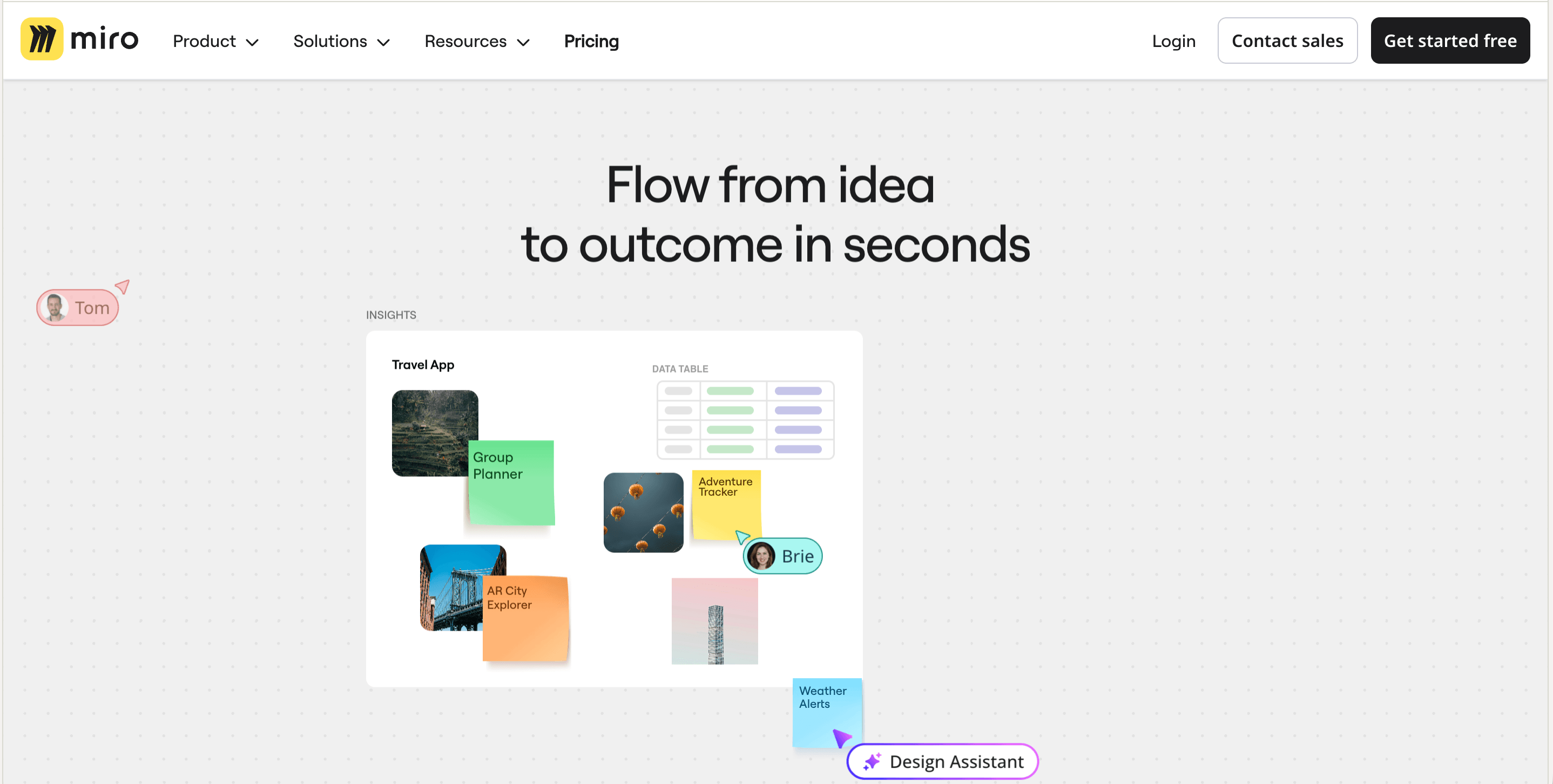
5. Miro
Best for:
Turning messy group thinking into shared clarity, especially in discovery and alignment work, where you need to capture raw inputs, find themes, and ship a clean “here’s what we learned and what we’re doing next” artifact.
Why PMs use it:
It’s the fastest way to run a real workshop without losing the output. You leave with a board you can revisit, not a vague memory of a good meeting.
It’s strong for synthesizing research inputs. Miro AI can cluster sticky notes by keyword or sentiment and generate summaries from your selected stickies.
It supports hybrid work. Sticky Capture lets you upload a photo of physical sticky notes and turn them into editable stickies on the board.
It helps you turn board chaos into a document. Miro AI can generate a Doc from selected content, like a research summary, proposal, or notes.
Weakness:
Without a facilitator mindset, boards get cluttered fast. Many teams end up spending more time organizing the canvas than making decisions.
Performance can lag on big boards. Users commonly report slow loading and lag when boards get heavy with objects, images, or PDFs.
Miro AI is not available to guests and visitors. Only members can use it, which can be awkward in client-heavy workshops.
Miro AI can be wrong or outdated and Miro explicitly warns you to verify outputs. Treat it as a synthesis assistant, not a source of truth.
Pricing: Paid plans start at about $8 per member per month (billed annually), with a free plan available for small teams.
Miro integrations
Two-way sync with delivery tools: Miro connects directly with Jira and Azure DevOps, so teams can pull work items onto the board, edit them there, and keep everything synced. That makes it easy to turn workshop output into real tracked work.
Confluence, Teams, and Slack for collaboration: Miro fits into the tools teams already use to document and communicate. Boards can live inside Confluence, show up in Teams meetings and chats, and be shared quickly through Slack without breaking the flow of collaboration.
Embeds and custom integrations: Miro can pull in content from tools like Figma, Google Workspace, and BI platforms, and it also offers APIs and SDKs for deeper workflows. That gives teams both a flexible collaboration surface and a way to connect it to their broader stack.
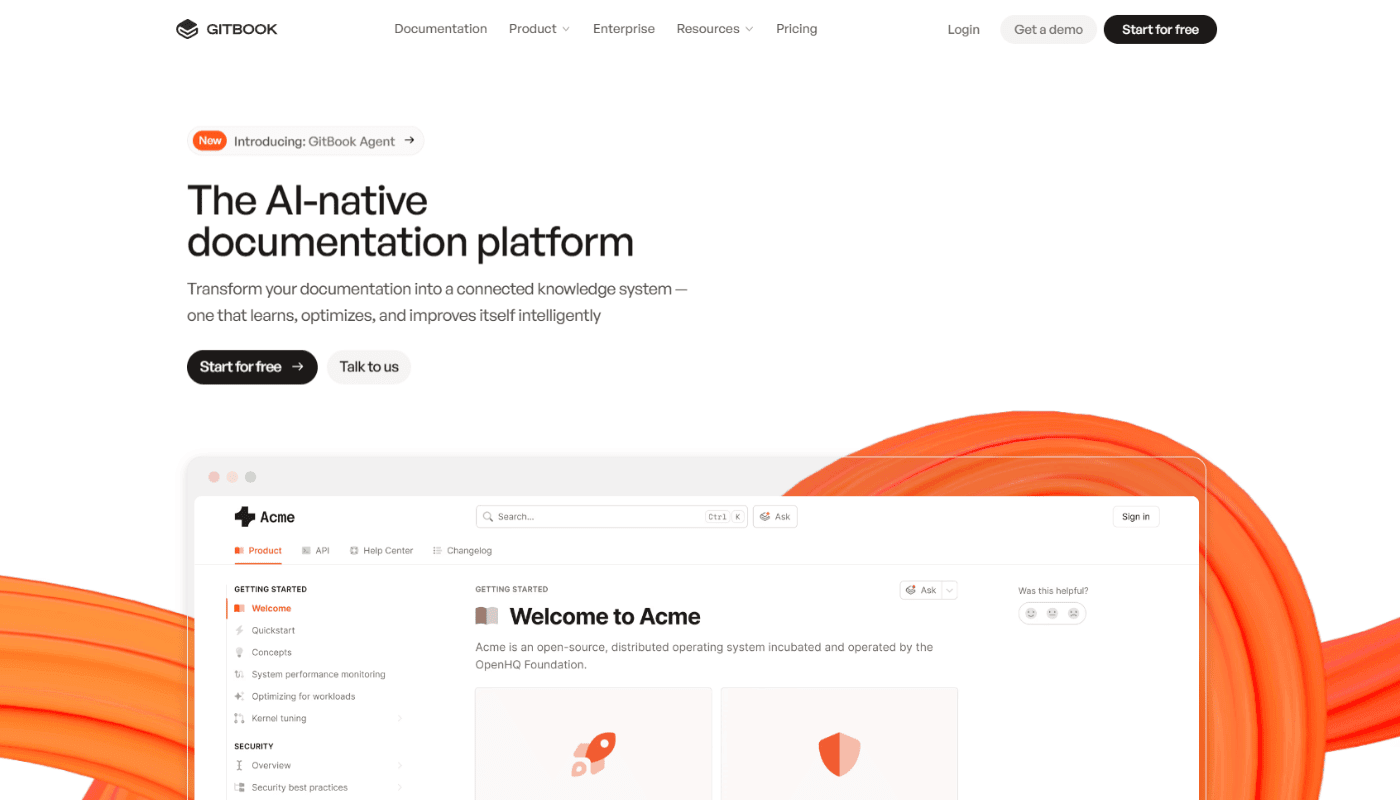
6. GitBook
Best for:
Customer-facing docs, internal product docs, and turning those docs into an AI answering surface (assistant) that can live inside your product.
Why PMs use it:
It lets you ship one source of truth that works for both customers and your internal team, instead of splitting docs across five tools.
It can turn docs into a support surface inside the product, so users can ask questions without leaving the UI.
It supports docs as code without making non-technical people work in a repo, thanks to bi-directional GitHub and GitLab sync.
It is built for AI discoverability, including Markdown-friendly pages and auto-generated llms.txt files that help AI tools index your docs.
Weakness:
The assistant only works as well as your docs information architecture and writing. If docs are inconsistent, users get confident answers that still miss the point.
Real-time collaboration does not work in some common setups, like spaces that are public or spaces where Git Sync is enabled.
The AI assistant is tied to higher plans, and GitBook positions it as an Ultimate plan feature, which can make the best experience expensive for larger teams.
Some users report reliability and pricing change frustrations, especially around plan changes and collaboration sync problems. Treat this as a signal to double-check your plan needs and rollout approach.
Pricing: Pricing starts around $65 per site per month, plus about $12 per user per month for team members.
Gitbook integrations
Bi-directional sync with GitHub and GitLab: GitBook keeps documentation aligned with the codebase by syncing edits both ways. That lets PMs work in a visual editor while engineers stay in their usual Git workflow.
Embedded docs and AI assistant inside the product: GitBook can be embedded directly into your app, so users can browse docs and use the assistant without leaving the product. That makes in-product help much more seamless and useful.
Deeper product integration through auth and custom tools: The embed supports authenticated access for protected docs and can be extended with custom actions, so the assistant can respect permissions and connect users to relevant in-app workflows or product data.
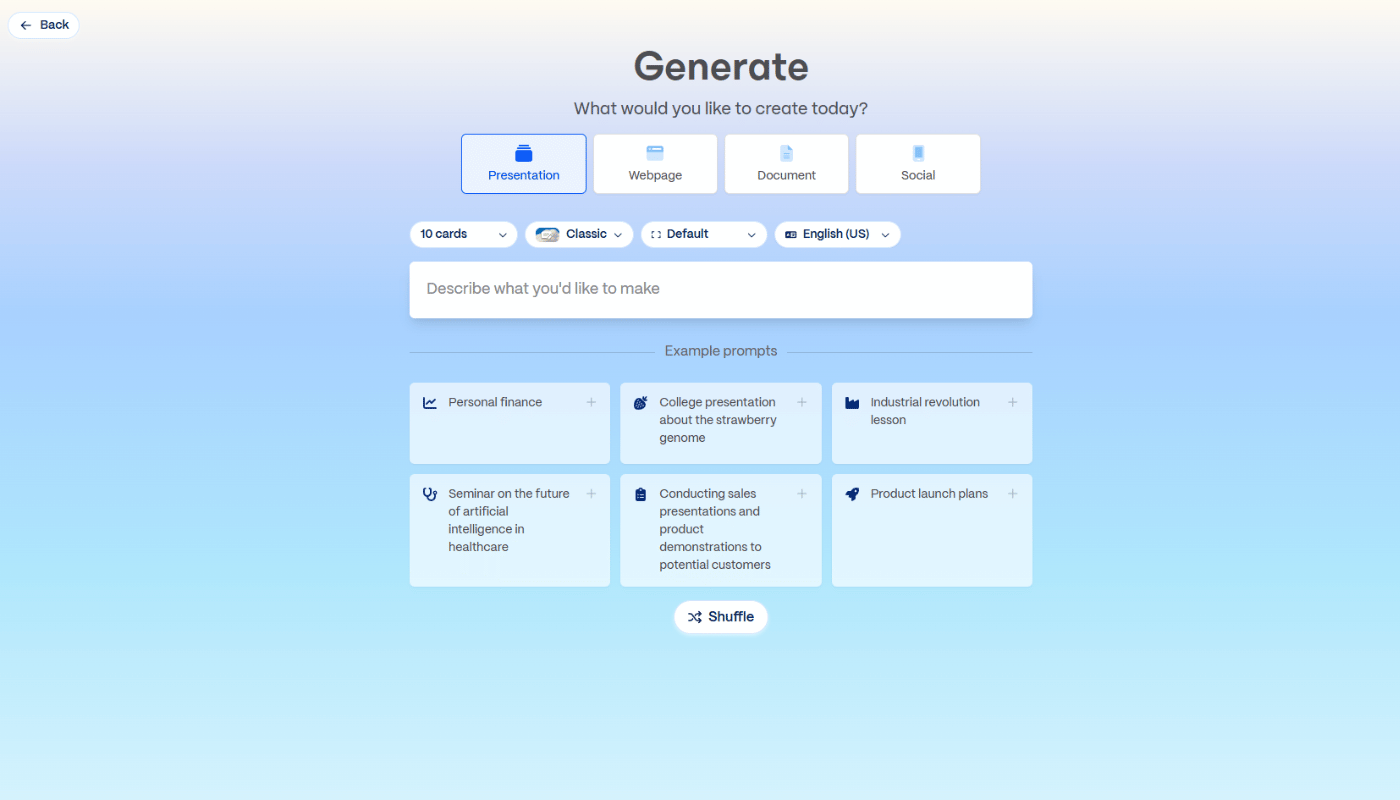
7. Gamma
Best for:
Fast stakeholder decks and narrative docs that you can share as a link, especially when you want something polished quickly and you do not want to fight PowerPoint formatting for the first draft.
Why PMs use it:
It turns raw inputs into a structured deck in minutes, which is perfect for weekly updates, roadmap narratives, and decision memos that need a clean story fast.
It is built for link sharing, so stakeholders can read the deck like a modern doc, not a file attachment that gets ignored.
Import is practical for PM work, because you can drop in a doc or PPTX and have Gamma restyle it into cards, then iterate from there.
Export is straightforward when you need it, including PDF, PNG, and PowerPoint (PPTX), plus the common “export PPTX then upload to Google Slides” path.
Weakness:
PowerPoint export can be imperfect. Gamma explicitly notes exports reflect Present Mode and can differ from the edit view, and long or image-heavy decks can fail or render oddly.
If your team needs pixel-perfect control, Gamma can feel restrictive compared to slide tools, and reviewers often call out limited fine-grained layout control.
AI credits are a real constraint on the Free plan because credits do not refresh, so heavy iteration hits a wall.
Import is mostly text-first. Gamma’s importer focuses on bringing in text and re-styling it, not preserving your original formatting.
Pricing: Paid plans start around $10 per user per month, with a free tier available for basic document and deck generation.
Gamma integrations (that are actually useful for PM workflows)
Import from your existing content stack: Gamma can turn materials from Google Docs, Slides, Word, Notion, webpages, and PowerPoint into polished cards quickly. That makes it useful when teams already have source material and want to turn it into a presentation fast.
APIs and automation for scalable deck creation: Gamma supports automation through Zapier and its Generate API, which means teams can create decks, docs, or webpages automatically from upstream content or workflows.
Template-based generation for repeatable outputs: With template-based creation, teams can lock in a proven structure and reuse it across new content. That is especially valuable when you want consistency across recurring presentations, reports, or internal updates.
Tool Category: Prototyping and Agent Building
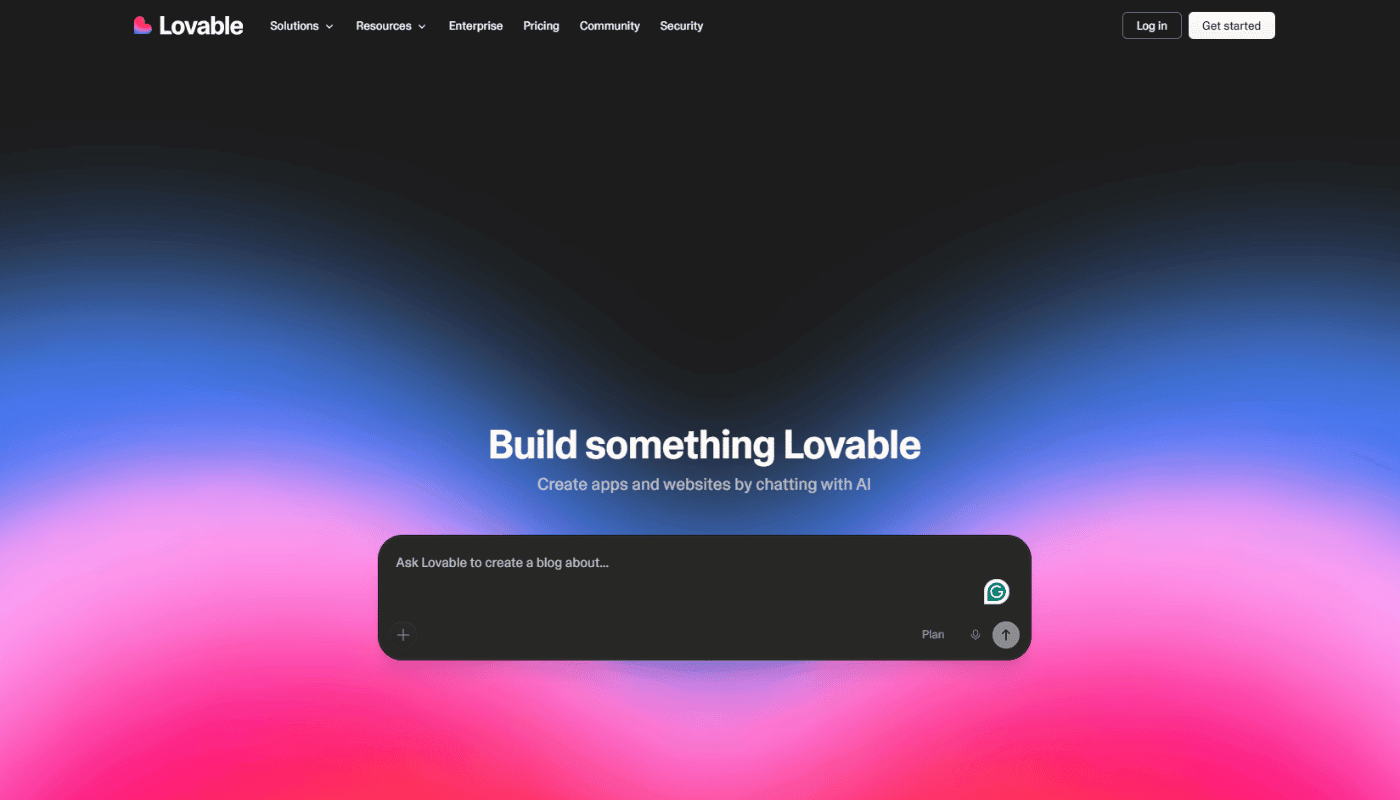
8. Lovable
Best for:
Building new interactive prototypes fast, especially when you want a real, clickable app (with state, auth, and data) instead of a static mock, and you want a clean path to production later if the prototype earns it.
Why PMs use it:
It gets you to a working prototype without needing a designer and an engineer in the room on day one, which is ideal for early product shaping and stakeholder buy-in.
It starts to feel “real” fast because you can add a real backend with Supabase, including authentication and database tables, through a guided integration.
It reduces lock-in fear compared to many app builders because you can continuously sync code to GitHub and deploy wherever you want later (Netlify, Vercel, Cloudflare Pages, etc.).
It has an explicit collaboration model. Plans are shared across unlimited users, so small teams can collaborate without multiplying seat costs the same way.
Weakness:
Credits are the real constraint. Every meaningful iteration costs credits, and bigger changes can burn them faster than teams expect, which makes “polish to perfection” expensive.
GitHub sync is powerful but can create workflow risk if you treat it like a normal dev setup. Some users report unpleasant surprises like reverts or confusing sync behavior, so you need discipline around branches and environments.
It does not give you a native “one click deploy to Vercel” integration the way some people assume. The common path is GitHub export and then deploy via Vercel/Netlify from that repo.
Like any AI builder, it can produce plausible code that still needs review. It is great for speed, but you still need judgment before calling something production-ready (especially around security rules and permissions).
Pricing: Paid plans start around $25 per month with usage credits included, plus a limited free tier.
Lovable integrations
Native GitHub sync: continuous code backup and collaboration, and a clean bridge to deploy on Vercel/Netlify or move off Lovable Cloud later.
Native Supabase integration: adds production-grade backend building blocks (auth, database, storage, real-time, edge functions) through the same prompt-driven workflow.
Verified integrations for “real app” capability: Stripe (payments), Resend (email), Twilio (SMS), Clerk (user management), OpenAI/Anthropic (AI features), plus automation tools like n8n and Make for workflow wiring.
Design-to-build bridge: Figma import is listed as a verified integration, which is useful when you want to start from an existing design direction instead of pure prompting.

9. Bolt.new
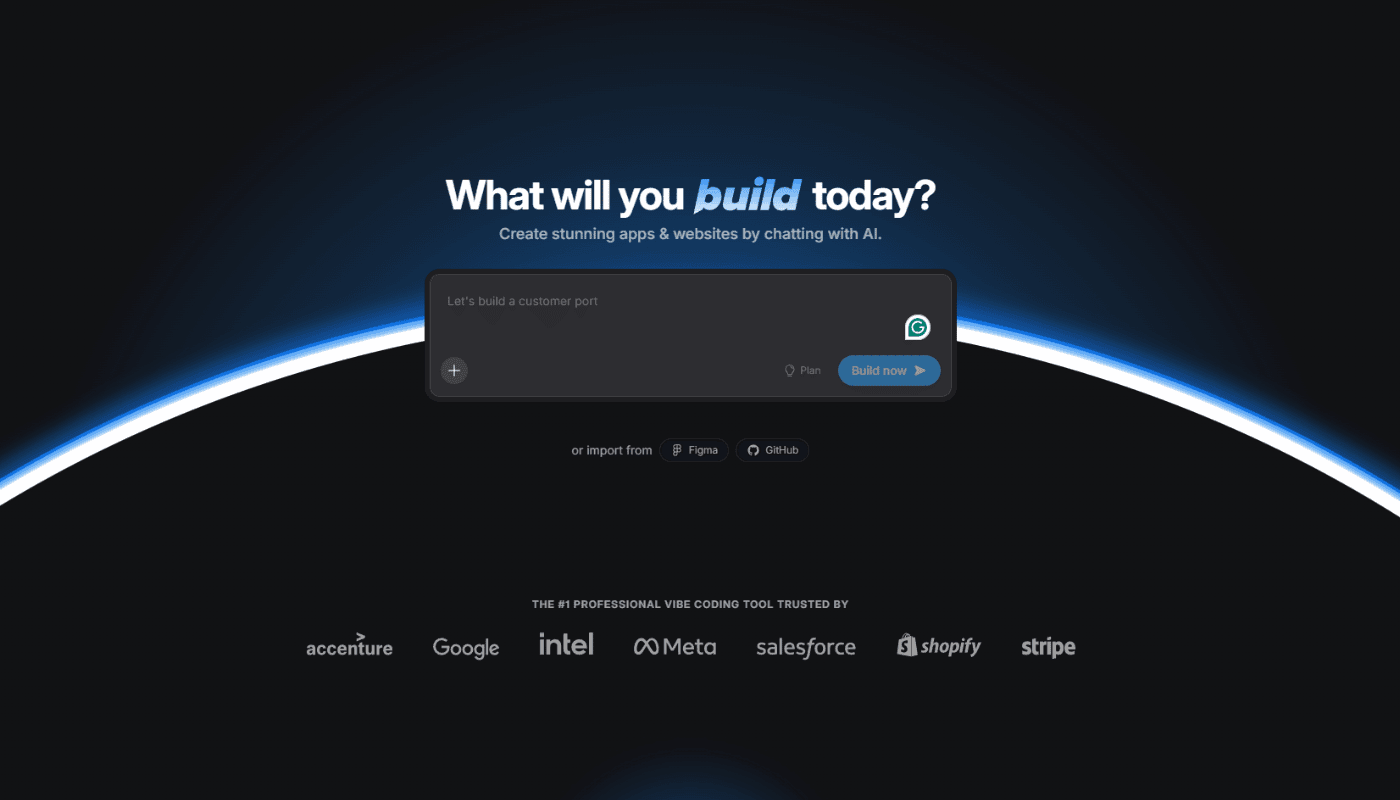
Best for:
Building new interactive prototypes fast (vibe coding), especially when you want something clickable and stateful, not just a mock.
Why PMs use it:
It gives you a working app you can click through, not slides, so stakeholders react to real behavior instead of debating words.
It is easy to share because publishing is built in, and you can ship a live link on Bolt hosting or Netlify when you need a demo fast.
It connects to GitHub, so the prototype can become a real repo instead of a dead-end demo.
It is strong for rapid iteration when you treat it like product work, small scoped changes, check the preview, then move to the next change. Bolt’s own troubleshooting guidance recommends exactly that approach.
Weakness:
Tokens can disappear faster than you expect because Bolt spends a lot of tokens reading and syncing your project files. Bigger projects make every message more expensive.
It is browser and device-sensitive. Bolt recommends Chrome or a Chromium browser, and larger projects can hit out-of-memory errors because WebContainer uses your local machine resources.
Preview and runtime issues happen, and Bolt explicitly warns that repeated prompting to “fix preview” can burn tokens without solving the root cause.
Some real apps run into browser-based limitations when calling external services, including CORS issues that show up in WebContainer environments.
Pricing: Free tier available with daily token limits; paid usage is credit-based and scales with token consumption.
Bolt integrations
GitHub as the real handoff layer: Bolt connects directly to GitHub, so prototype work is versioned, backed up, and easier to hand over to engineering. That matters because the prototype does not have to die as a demo, it can become part of a real code workflow.
Branching for multiple prototype directions: Bolt supports branch-based work, which makes it easier to explore different product directions without overwriting the main version. That is especially useful when teams want to compare alternative flows or concepts.
Flexible deployment for shareable demos: Bolt supports hosted publishing, Netlify deployment, and custom domains, giving teams practical ways to share prototypes with stakeholders. The main value is that it makes demos easy to publish while keeping room for a more production-like setup when needed.
10. Alloy
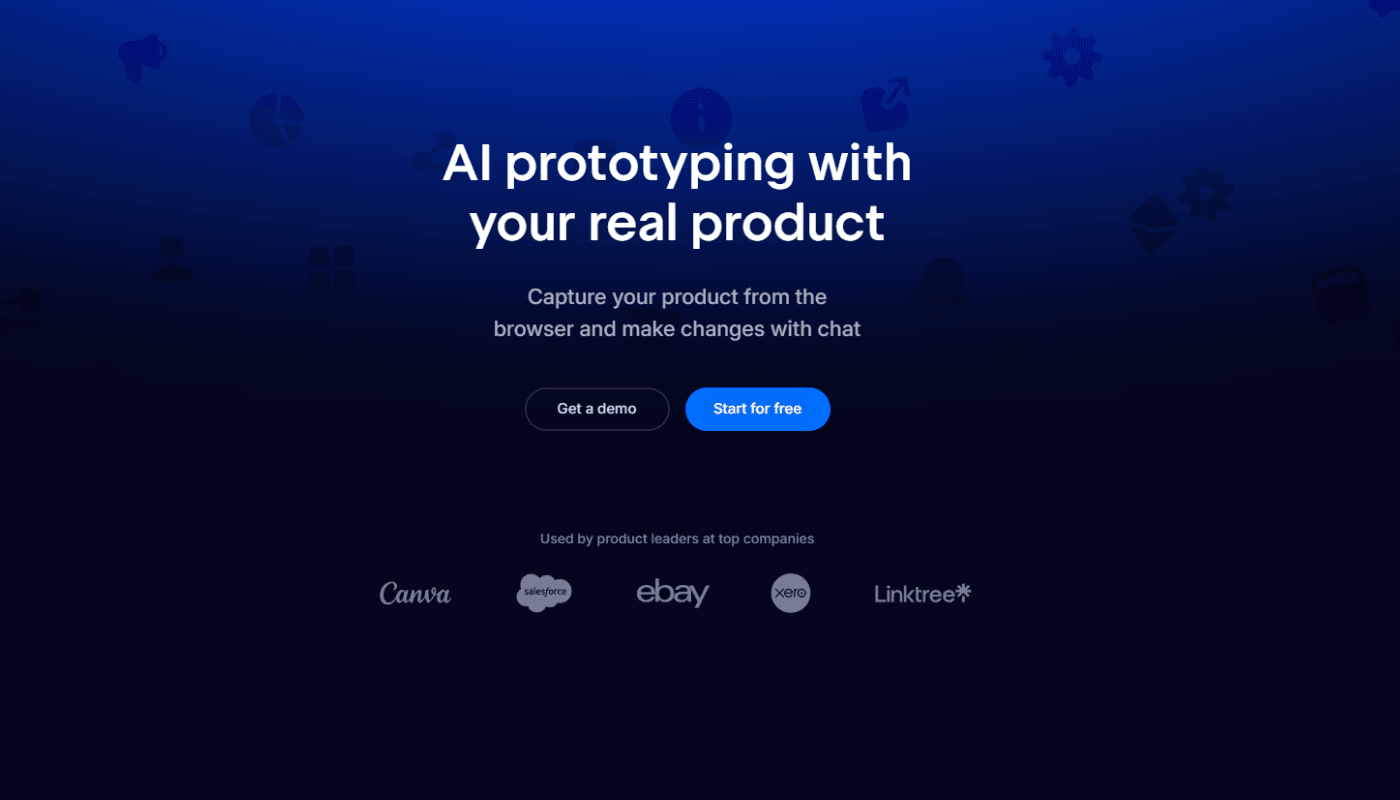
Best for:
Prototyping changes on top of an existing product UI that already has a real design system, without rebuilding screens in Figma first. Alloy’s core idea is simple: capture your live app, then prompt changes that stay on brand.
Why PMs use it:
It starts from your real interface, so prototypes look like your product, not a generic “app builder demo.”
You can capture a page in one click and iterate by chat, which is ideal when you need a fast visual to align stakeholders.
It lets you keep iterating with small, specific prompts and visual edits, instead of rewriting a whole mockup every time someone says “what if we also…”
If you need a developer handoff, you can export a prototype as a React app (React is a common web UI framework), which can speed up implementation discussions.
It fits into PM workflows via integrations (Linear, Jira, Notion, and more), so “idea to prototype” can start from where requests already live.
Weakness:
Capturing new prototypes requires a Chromium-based browser (Chrome, Edge, Brave, etc). Safari and Firefox are not supported for capture via the extension.
If you are building something net new (no existing UI to capture), Alloy is not the best starting point. It is designed for iterating on what already exists.
You will get disappointing results if your prompts are vague or overloaded. Alloy’s own guidance says the best results come from small, specific instructions and iterative refinement.
Exported code is helpful for handoff, but Alloy explicitly says it cannot guarantee the generated code is production quality.
Pricing: Paid plans start around $20 per user per month, with a free tier that includes limited prototype credits.
Alloy integrations
Prototype from the systems where work already lives: Alloy connects with tools like Jira, Linear, Productboard, and Notion, so teams can turn backlog items and product ideas into clickable prototypes without recreating the context from scratch.
Use support, sales, and research inputs as prototype fuel: Integrations with tools like Intercom, Zendesk, Salesforce, Gong, and Dovetail let teams turn customer requests, sales signals, and research insights into fast prototypes that can be validated quickly.
Automation and engineering handoff: Alloy supports workflow automation through Zapier and can bridge into engineering through GitHub and React exports. That makes it useful not just for quick concepting, but for moving prototypes closer to real delivery.
11. LangFlow
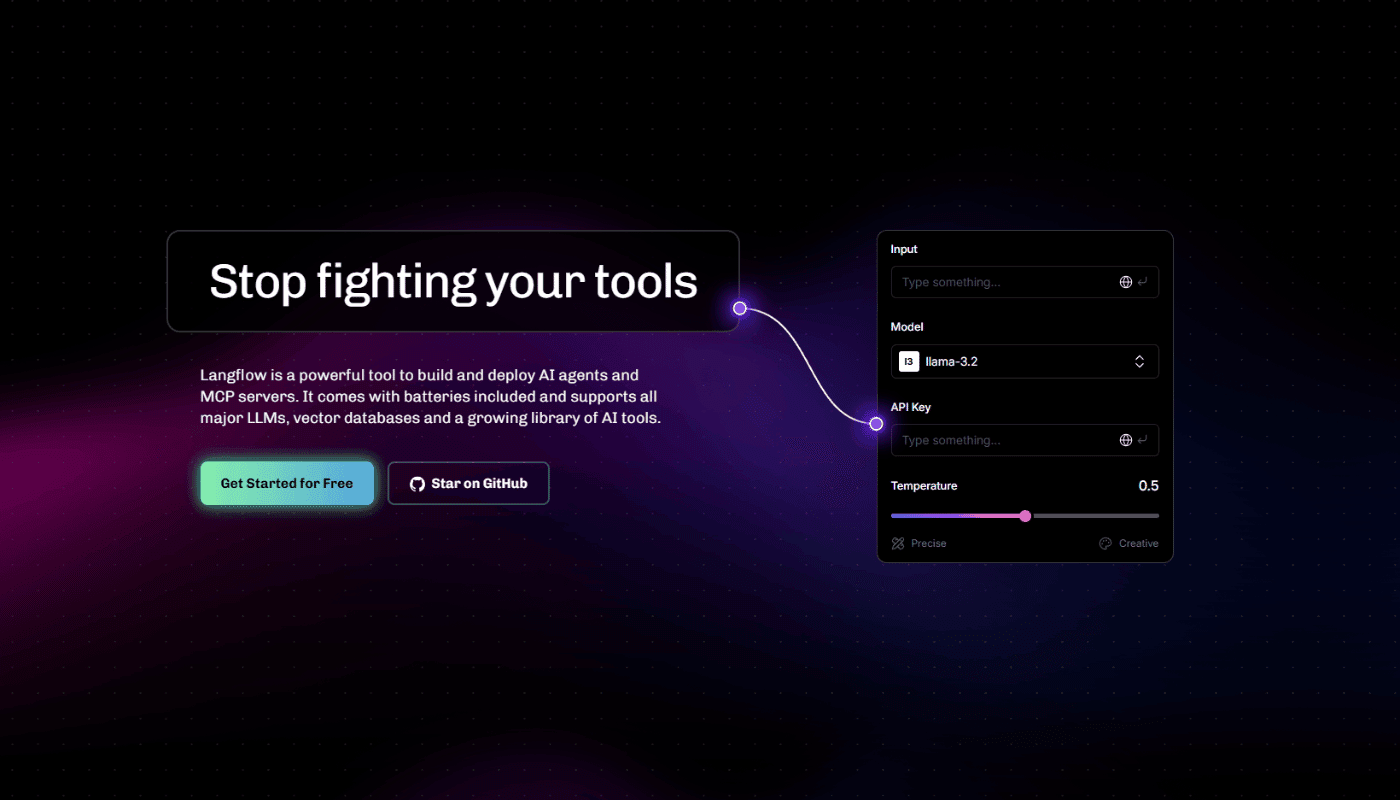
Best for:
Designing and shipping internal AI workflows and agents visually, especially when you want something PMs can reason about, engineers can debug, and teams can deploy as an API, an embedded chat widget, or an MCP tool.
Why PMs use it:
It is visual and component-based, so you can see the actual logic instead of guessing what a prompt chain is doing.
You can test flows in real time in the Playground before anyone writes app code.
It gives you multiple “shipping paths” once a flow works, including calling it via the Langflow API, embedding a chat widget on a site, exposing it as MCP tools, or using an OpenAI Responses compatible endpoint.
It is flexible on providers, since Langflow does not force a specific LLM or vector store, which helps teams avoid platform lock-in early.
Weakness:
Upgrades can break existing flows or components, and multiple GitHub issues describe flows becoming stale after upgrades or needing rebuilds to work again.
The UI can be flaky in real deployments, with reports like flows not loading without a refresh and components not showing correctly in the interface.
The Components Store can fail or hang in some versions and setups, which blocks discovery and reuse of components.
Some users report stability issues in production-like setups, like memory growth with custom components or weird model selection behavior when opening flows.
Pricing: Open-source and free to run locally; hosted cloud versions are free to start, with usage costs depending on connected AI providers.
Langflow integrations
Flows exposed as APIs: Langflow lets you trigger flows programmatically through its API and generates ready-to-use code snippets (Python, JavaScript, curl). That makes it easy to move from experimentation to real internal tools.
Embeddable chat experiences: Flows that use chat inputs and outputs can be embedded directly into a website through a simple snippet, which is useful for quickly testing AI workflows in a real user interface.
RAG and integrations with your stack: Langflow includes built-in support for common vector databases and connectors to tools like Slack, Google Drive, GitHub, and Confluence. This makes it practical for building retrieval-based AI workflows connected to real company data.
AI Tools for Product Managers
If you take one thing from this guide, take this:
The “best” AI tool depends on your bottleneck, not the hype cycle.
If you need fast thinking and structured writing, start with OpenAI.
If you need execution leverage, keep it inside Linear.
If your inputs are calls and recordings, Descript will save you hours.
If your inputs are research tasks and navigation decisions, Optimal Workshop gives you evidence you can defend.
If you need alignment across humans, Miro and Gamma turn chaos into shared artifacts.
If you need prototypes that feel real, use Lovable when you want an app-like demo with data and flows, and Bolt.new when you want a fast interactive proof without setup.
If you’re building agent workflows, Langflow is the right starting point because it makes the logic visible and testable.
Choose the tool that produces an artifact your team already trusts, and that can live in your system of record. If it creates outputs that stay outside your docs, tickets, or product surface, it will become another tab you stop opening.
Pick two tools to start, run one workflow end-to-end this week, and only then expand the stack.
Updated: April 27, 2026